
The latest advancement in AI technology created by WordPress and set to be part of the core 6.9 release. Visit the GitHub
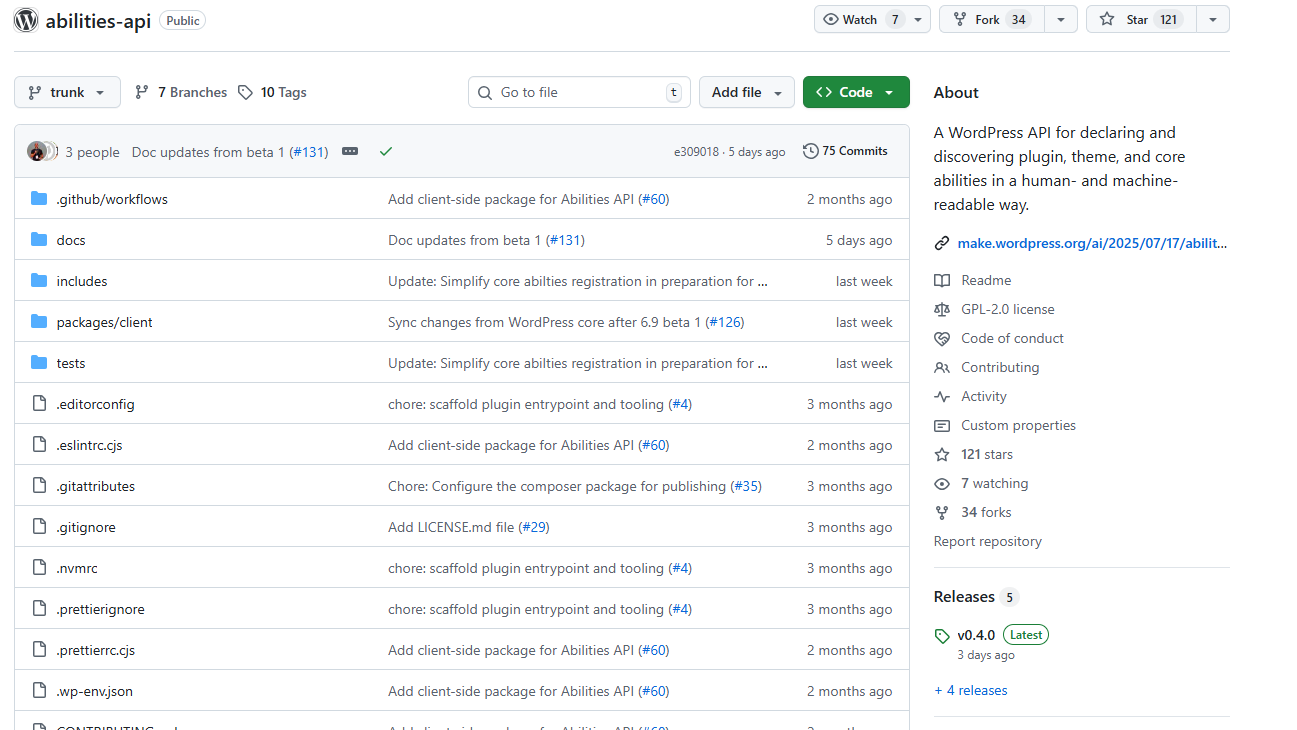
The WordPress Abilities API GitHub
The latest advancement in AI technology created by WordPress and set to be part of the core 6.9 release. Visit the GitHub
The WordPress Abilities API GitHub
Last weekend I submitted AI System Admin to wordpress.org my hope is this plugin will be offered on the wordpress.org website soon.
In the meantime for those who would like to experiment with AI System Admin and its special sidekick Awesome Abilities, I am offering pre-release access for testing and feedback. Please use the contact form below to request a pre release copy.
The following two plugins are available for pre release testing.
Site Abilities – Registering an Ability
This is an example of how to register an ability with the site-abilities plugin. In this case we want to be able to send emails so we are going to register site/send-email. These are the instructions.
Complete the add ability form with the following information:
Section 1: Basic Information
Step 1 – Ability Name:
site/send-email
Step 2 – Label:
Send Email
Step 3 – Description:
Send an email to specified recipients with a custom subject and message body
Step 4 – Category:
Section 2: Input Parameters
Click “+ Add Input Parameter” three times to add these parameters:
Parameter 1:
Parameter 2:
Parameter 3:
Section 3: Output Schema
Output Type: Keep as Object (already selected)
Click “+ Add Output Property” twice to add:
Property 1:
Property 2:
Section 4: Execute Callback
// Validate inputs
if ( empty( $input['recipient_email'] ) || empty( $input['subject'] ) || empty( $input['message'] ) ) {
    return array(
        'success' => false,
        'message' => 'Missing required parameters: recipient_email, subject, message'
    );
}

// Validate email format
if ( ! is_email( $input['recipient_email'] ) ) {
    return array(
        'success' => false,
        'message' => 'Invalid email address format'
    );
}

// Send the email
$to = sanitize_email( $input['recipient_email'] );
$subject = sanitize_text_field( $input['subject'] );
$message = wp_kses_post( $input['message'] );
$headers = array( 'Content-Type: text/html; charset=UTF-8' );

$result = wp_mail( $to, $subject, $message, $headers );

// Return result
return array(
    'success' => $result,
    'message' => $result ? 'Email sent successfully to ' . $to : 'Failed to send email'
);
Section 5: Permissions
Who can execute?
Section 6: Metadata (Behavior Annotations)
Check the appropriate boxes:
☐ Read-only (doesn’t modify data) – LEAVE UNCHECKED
☐ Destructive (may delete/destroy data) – LEAVE UNCHECKED
☐ Idempotent (same result every time) – LEAVE UNCHECKED
Section 7: MCP Adapter
Final Step: Save
Click “Create Ability”
Copy the bridge file code below and create a wordpress-mcp-bridge.js file .
Instructions are below the code
#!/usr/bin/env node

const https = require('https');

const WP_SITE_URL = 'YOUR_SITE_URL';
const CLIENT_ID = 'YOUR_CLIENT_ID';
const CLIENT_SECRET = 'YOUR_CLIENT_SECRET';

const WP_MCP_URL = `${WP_SITE_URL}/wp-json/ai-system-admin-mcp/v1/mcp`;
const TOKEN_URL = `${WP_SITE_URL}/wp-json/ai-system-admin-mcp/v1/oauth/token`;

let accessToken = null;
let tokenExpiry = null;
let buffer = '';

async function getAccessToken() {
  if (accessToken && tokenExpiry && Date.now() < tokenExpiry) {
    return accessToken;
  }

  return new Promise((resolve, reject) => {
    const postData = new URLSearchParams({
      grant_type: 'client_credentials',
      client_id: CLIENT_ID,
      client_secret: CLIENT_SECRET
    }).toString();

    const options = {
      method: 'POST',
      headers: {
        'Content-Type': 'application/x-www-form-urlencoded',
        'Content-Length': Buffer.byteLength(postData)
      }
    };

    const req = https.request(TOKEN_URL, options, (res) => {
      let data = '';

      res.on('data', (chunk) => {
        data += chunk;
      });

      res.on('end', () => {
        try {
          const response = JSON.parse(data);
          if (response.access_token) {
            accessToken = response.access_token;
            tokenExpiry = Date.now() + ((response.expires_in - 300) * 1000);
            resolve(accessToken);
          } else {
            reject(new Error(`OAuth error: ${JSON.stringify(response)}`));
          }
        } catch (e) {
          reject(new Error(`Failed to parse token response: ${e.message}`));
        }
      });
    });

    req.on('error', (e) => {
      reject(new Error(`OAuth request failed: ${e.message}`));
    });

    req.write(postData);
    req.end();
  });
}

process.stdin.setEncoding('utf8');
process.stdin.on('data', (chunk) => {
  buffer += chunk;

  const lines = buffer.split('\n');
  buffer = lines.pop() || '';

  lines.forEach(line => {
    if (line.trim()) {
      try {
        const request = JSON.parse(line);
        handleRequest(request);
      } catch (e) {
        sendError(null, -32700, 'Parse error', e.message);
      }
    }
  });
});

function handleRequest(request) {
  const { id, method, params } = request;

  if (method === 'initialize') {
    sendResponse(id, {
      protocolVersion: '2024-11-05',
      capabilities: {
        tools: {}
      },
      serverInfo: {
        name: 'wordpress-mcp',
        version: '1.0.0'
      }
    });
    return;
  }

  if (method === 'tools/list') {
    forwardToWordPress(request, id);
    return;
  }

  if (method === 'tools/call') {
    forwardToWordPress(request, id);
    return;
  }

  sendError(id, -32601, 'Method not found');
}

async function forwardToWordPress(request, id) {
  try {
    const token = await getAccessToken();
    const postData = JSON.stringify(request);

    const options = {
      method: 'POST',
      headers: {
        'Content-Type': 'application/json',
        'Content-Length': Buffer.byteLength(postData),
        'Authorization': `Bearer ${token}`
      }
    };

    const req = https.request(WP_MCP_URL, options, (res) => {
      let data = '';

      res.on('data', (chunk) => {
        data += chunk;
      });

      res.on('end', () => {
        try {
          const response = JSON.parse(data);
          sendResponse(id, response.result || response);
        } catch (e) {
          sendError(id, -32603, 'Internal error', `Failed to parse WordPress response: ${e.message}`);
        }
      });
    });

    req.on('error', (e) => {
      sendError(id, -32603, 'Internal error', `Request to WordPress failed: ${e.message}`);
    });

    req.write(postData);
    req.end();
  } catch (e) {
    sendError(id, -32603, 'OAuth error', e.message);
  }
}

function sendResponse(id, result) {
  const response = {
    jsonrpc: '2.0',
    id: id,
    result: result
  };
  process.stdout.write(JSON.stringify(response) + '\n');
}

function sendError(id, code, message, data = null) {
  const response = {
    jsonrpc: '2.0',
    id: id,
    error: {
      code: code,
      message: message,
      ...(data && { data })
    }
  };
  process.stdout.write(JSON.stringify(response) + '\n');
}

console.error('WordPress MCP Bridge started');
console.error('Connecting to:', WP_MCP_URL);
console.error('OAuth endpoint:', TOKEN_URL);
Global Setup (Available Everywhere)
To set up WordPress MCP globally so it’s available in all your Claude Code sessions regardless of which folder you’re in, first copy the template bridge file to a permanent location outside any project (like
~/mcp-bridges/wordpress-mcp-bridge.js), then edit it to replace the three placeholder values with your actual WordPress site URL and OAuth credentials from your WordPress plugin settings.
Once configured, run claude mcp add -s user wordpress node ~/mcp-bridges/wordpress-mcp-bridge.js to register it with Claude Code.
Now whenever you start Claude from any directory, the WordPress connection will be available because it’s saved in your global
~/.claude.json configuration file.
Project-Only Setup (Specific Folder)
To set up WordPress MCP for just one project folder, navigate to your project directory and create a scripts/mcp/
folder inside it, then copy the template bridge there and configure it with your WordPress credentials. Instead of
using the -s user flag, run claude mcp add -s project wordpress node scripts/mcp/wordpress-bridge.js which
creates a .mcp.json file in your project root directory.
This means the WordPress MCP connection will only work when you open Claude Code from within that specific project folder—if you open Claude from a different directory,
it won’t have access to this WordPress connection. This is useful when working with teams (you can commit .mcp.json to git) or when different projects need to connect to different WordPress sites.
Manual Configuration is Required
Claude Code cannot automatically find your bridge file because:
You must configure once using claude mcp add, then everything else is automatic.
Summary
| Step | You Do Manually | Claude Code Does Automatically |
|---|---|---|
| 1. Create bridge file | ✓ Yes | ✗ No |
| 2. Add credentials | ✓ Yes | ✗ No |
| 3. Register with claude mcp add | ✓ Yes | ✗ No |
| 4. Start bridge on launch | ✗ No | ✓ Yes |
| 5. Connect via MCP | ✗ No | ✓ Yes |
| 6. Authenticate with WordPress | ✗ No | ✓ Yes (uses credentials in bridge) |
| 7. Load available tools | ✗ No | ✓ Yes |